Connect an assistant
Goal: put the assistant you write with on a project, so it follows the project's rules and leaves what it notices for you to review. You do this once per project and assistant, on the project's Assistants page, with no terminal.
The Assistants page
Open the project's Context hub and choose Assistants. The title names the project, and the line under it says what connecting does: the assistant's edits are checked, it follows the rules the project keeps, and it leaves its suggestions on this page.

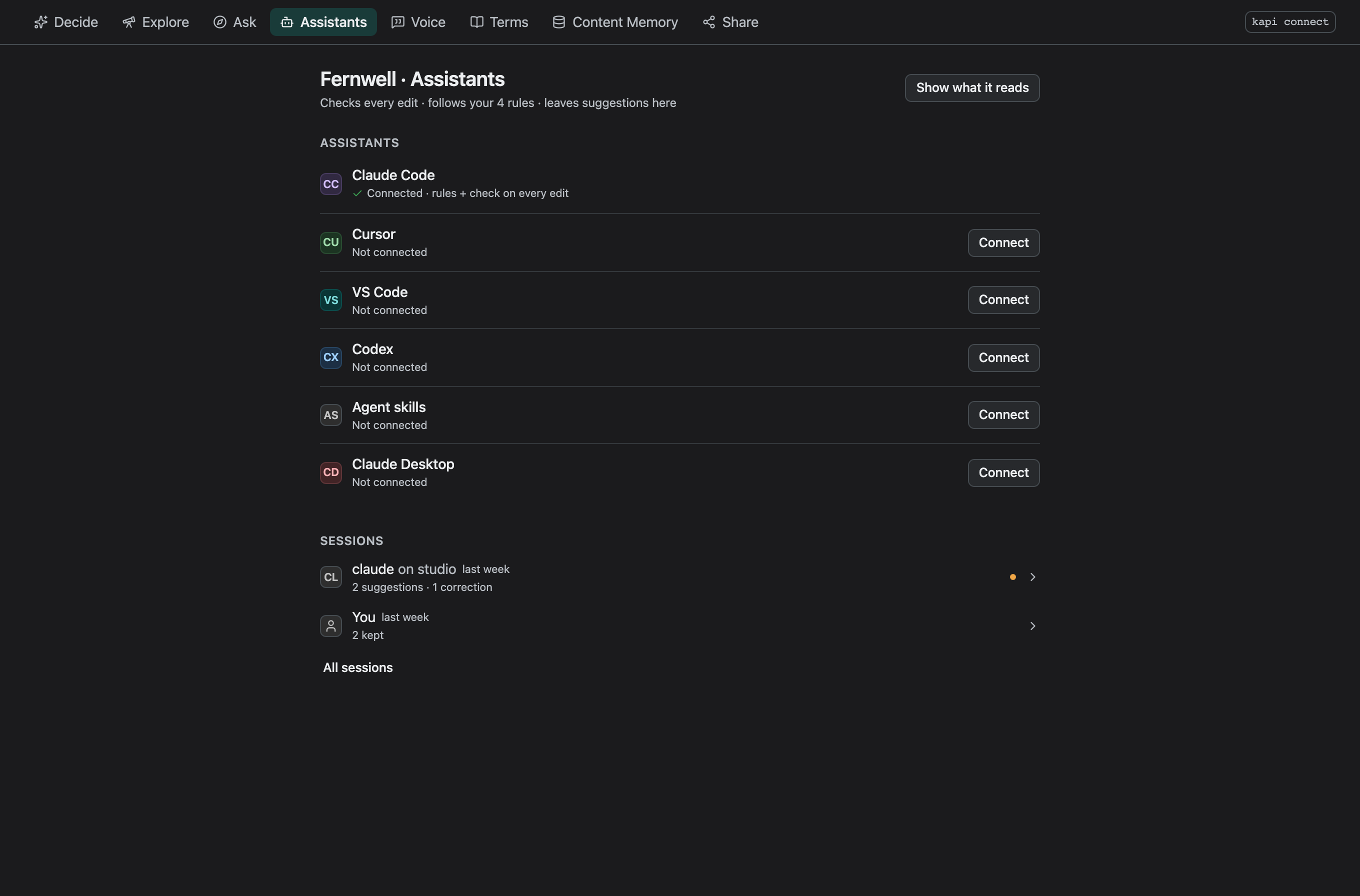
Assistants has a row for each assistant: Claude Code, Cursor, VS Code, Codex, Agent skills, and Claude Desktop on macOS and Windows. Each row shows the assistant's mark and one of two states:
- Not connected, with Connect at the end of the row.
- Connected, followed by what the assistant gets: rules + check on every edit for Claude Code with the kapi plugin enabled, rules otherwise.
Show what it reads, beside the title, opens the rules files and the brief for a file, which every assistant reads alike.
Sessions lists what was recorded in the project, one row per session,
newest first: the assistant or the person who worked, when, and the counts the
session carries, such as 2 suggestions · 1 correction. A dot marks a session
with a suggestion still waiting for you. A session the check on every edit ran
in also shows the files it edited, its checks and what they caught, such as
3 files · 4 checks · 2 caught, or 2 files · 3 checks · clean when no check failed.
Steps
- Open the project. Connecting writes files into the project, so it needs a checkout on this machine. A context-only tab says so in place of the rows.
- Click Connect on the row for your assistant. The row turns to Connected and lists the files it wrote. Hover over Connected to see the files that carry the connection. For Claude Desktop, confirm the file it names first.
- Turn on the check in Claude Code. The check that runs when Claude Code
finishes comes from the kapi Claude Code plugin. Until the plugin is
enabled, the Claude Code row names the two commands to run inside Claude
Code:
/plugin marketplace add neokapi/claude-plugins, then/plugin install kapi@neokapi-plugins. - Open your assistant in the project folder. Claude Code asks you to
approve the project's MCP server the first time. Review
.mcp.jsonbefore you say yes, the way you would any file a repository ships. Claude Desktop reads its file when it starts, so restart it. - Read a session. When the assistant has worked in the project, its session appears under Sessions. Select it to open Sessions on it: each entry in order, with Keep and Not a rule on a suggestion still waiting. Reset to before this session goes back to how the context stood before the session started.
What Connect writes
Connect writes what kapi connect <assistant> writes for that one assistant,
and reports each file as created, updated or kept. A second Connect keeps every
file as it is.
| Assistant | Its own files |
|---|---|
| Claude Code | .mcp.json with the kapi server, and the kapi skill in .claude/skills/kapi/ |
| Cursor | .cursor/mcp.json with the kapi server |
| VS Code | .vscode/mcp.json with the kapi server |
| Codex | .codex/config.toml with the kapi server, read once you trust the repository |
| Agent skills | the kapi skill in .agents/skills/kapi/, for any tool that reads SKILL.md |
| Claude Desktop | a kapi entry in your own claude_desktop_config.json, after you confirm |
Every assistant also reads the project's rules files. Connect writes the
project's rules into AGENTS.md and CLAUDE.md, at the root and in each
folder whose rules differ, where an assistant loads them as it starts. A folder
opened without a recipe gets its kapi.yaml first, since the server entry
names it.
The files sit in the project, and you commit them like any other file, so a
teammate who opens the project gets the same entry. Each server entry holds a
command only, with no shell, environment or credential. An entry
called kapi that you wrote or changed yourself is left as it is.
Claude Desktop reads one file for every project, outside them all:
~/Library/Application Support/Claude/claude_desktop_config.json on macOS and
%APPDATA%\Claude\claude_desktop_config.json on Windows. Kapi Desktop names
that file and asks before it changes it. The entry names the kapi binary by
its full path, since an app started from the Dock or the Start menu does not
read your shell's PATH.
What the assistant then does
The kapi skill asks an assistant for four habits:
- Follow the rules files. It writes by the rules in
AGENTS.mdandCLAUDE.mdwithout asking first, and asks kapi only about a file no section covers. - Record what the files do every time. A name, a spelling, a word the files use where writers often use another: what the files keep to and the rules do not list yet.
- Record your corrections. When you change a wording in its draft, it records the change as a suggestion.
- Check what it changed. It runs
kapi checkon each file it changed and fixes what the check reports. With the kapi plugin, Claude Code runs the project's check when it finishes and keeps working while a check fails.
An assistant without the skill reads the rules files, which end by asking it to check what it changed and to record what it notices.
What the assistant records appears in Kapi Desktop within a second or two: under What's new on the home, on the project's Map under What your files do, in the project's Decide, and as a session on the Assistants page. A suggestion advises at once and fails no check. It becomes a rule when you keep it. Review what your assistant noticed walks through deciding.
The same on the command line
kapi connect writes the same files from a terminal:
kapi connect             # Claude Code, plus the assistants whose folders the project keeps
kapi connect cursor      # one assistant
kapi connect --dry-run   # what it would write, writing nothing
See use with Claude for each file and the edit and Stop hooks, and rules files for agents.
Next
- Review what your assistant noticed: the review loop, on the sample.
- Use with Claude: working with kapi from inside Claude.