Kapi Desktop
Kapi Desktop shows the rules your projects keep: their terms, their voice and the decisions people made about them. Your assistants record what they notice while they work, and in the app you decide about it: keep what is right, change it, or drop it. A rule you keep holds in every file, for every assistant. The app also shows where each project's context lives, on this Mac or shared with your team.
The app, the kapi CLI and the MCP server read and write the same project data, so a desktop panel, a command and an MCP tool give the same answer to the same question.
What the app opens to
The app opens on Your context, captioned "What your projects write by, and what your assistants noticed." At the right of the title, a small chip names the workspace folder by its last segment; hover it for the full path. A workspace you can only read carries a Read only badge beside it.
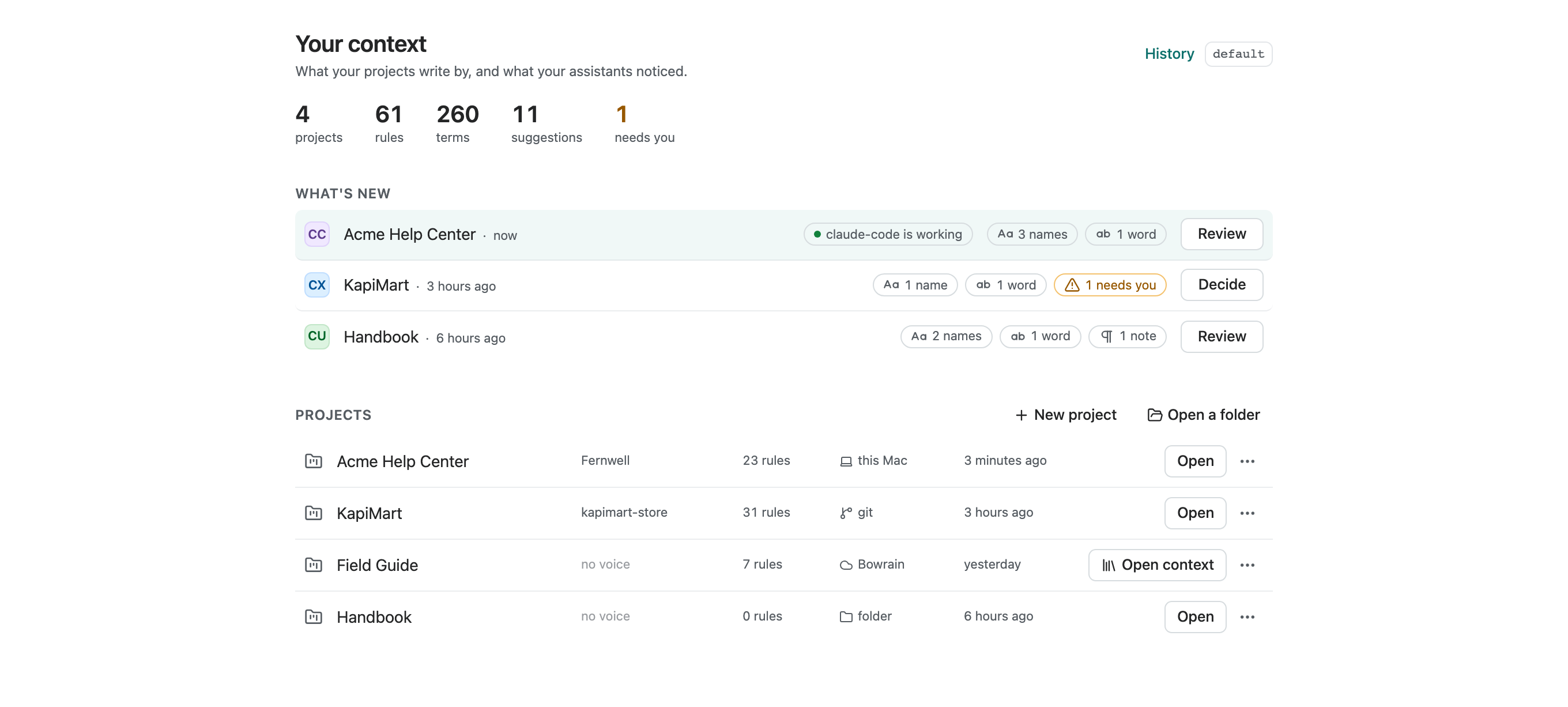
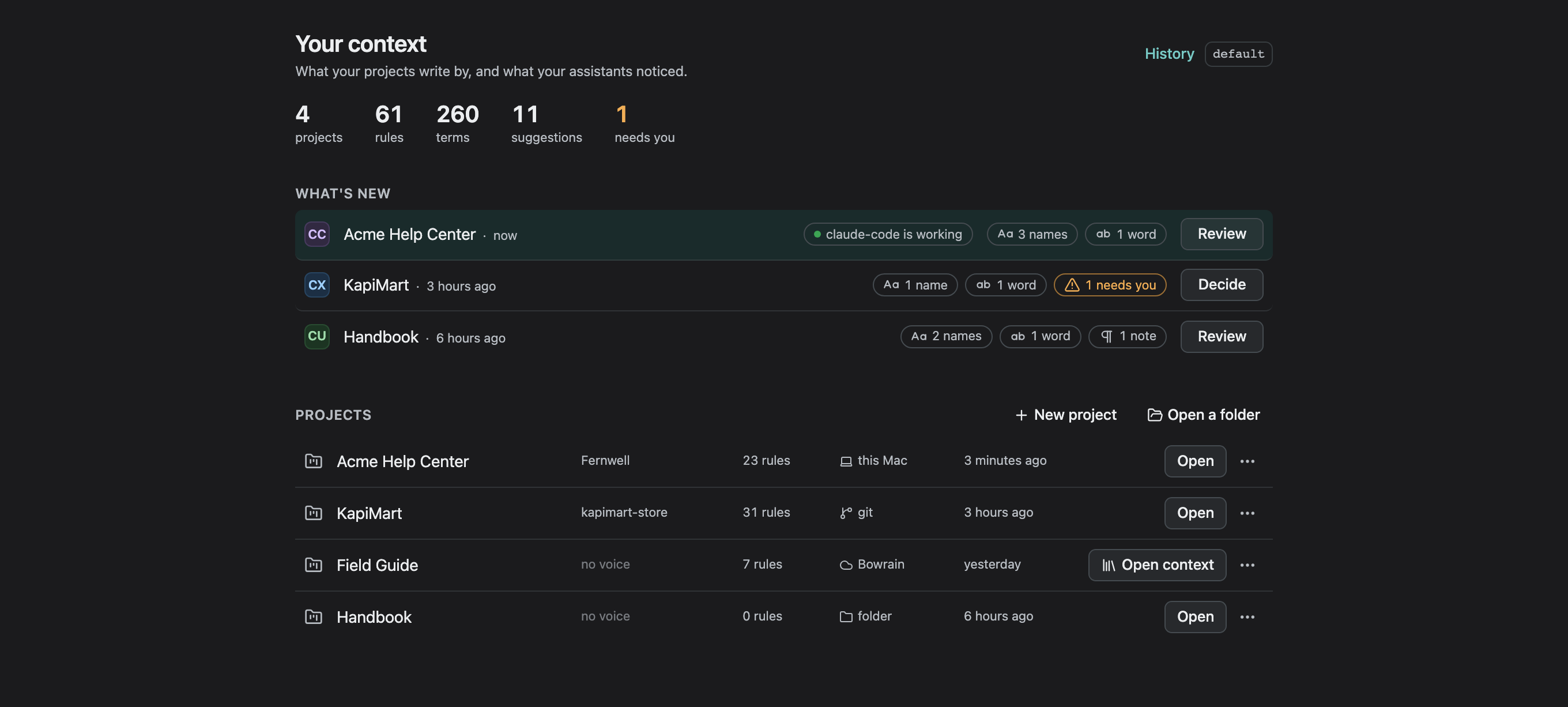
Under the title, a row of counts: projects, rules in force, terms, suggestions advising, and what needs you. Rules are what you decided in review. Terms are the concepts in your projects' terms stores, including the ones read in from a file. The last count is highlighted while a disagreement waits for you.
What's new has a row for each project with something you have not seen or not decided, newest first. From left to right, a row shows:
- the mark of the assistant that noticed something most recently, such as CC for claude-code, with its name on hover;
- the project, and how long ago the assistant worked there;
- a chip for each kind of thing it noticed, such as "3 names" and "1 word", and a highlighted "1 needs you" when two suggestions disagree;
- Review, or Decide when something needs you, which opens the project on Decide.
While an assistant is working in a project, the row adds a chip with a live
dot, such as "claude-code is working". j and k move between rows, and Enter
opens one. When nothing waits, the section says "Nothing new since you last
looked."
Projects lists every project the CLI, the app or an assistant has
registered, one row each, with New project and Open a folder above the
list. Each row gives the project's voice profile ("no voice" when none is
bound), the rules in force, where its context is shared, and when kapi last
worked there. Where the context is shared reads as an icon and a word: this
Mac, git, folder, S3, or the managed workspace the project is connected to.
Hover it for where the shared copy lives, and hover the project's name for the
folder it opens from. With no projects yet, the list says "Nothing here yet.
Projects appear as soon as kapi runs in them, whether you open one here or run
kapi in a folder."
Clones and worktrees with the same project id share one row and one context.
Open opens the first checkout, and the row's ⋯ menu lists the others. A
checkout folder that has gone missing stays in that menu, marked Missing, and
its context is kept. A project with no checkout on this machine shows Open
context instead, which opens a context-only tab: the context, without the
actions that need files. The menu also holds Copy path and Remove.
Remove takes the project off the list after a confirmation, and the dialog
names the context store it deletes and the checkout folders it leaves in place.
Holds in every project appears once you apply a rule to the whole workspace. It lists those rules, one row each, with who kept it and where it was decided: "kept by you · decided in Acme Help Center · 12 September".
Start here is three short steps for a first visit, each with a button. On an empty workspace it comes first; once a project is listed, it moves to the end of the page.
- "Open a project, or try the sample. The sample arrives with an assistant's notes to review." Try the sample
- "Connect an assistant. kapi writes the project's rules where it reads them, and the assistant records what it notices." Connect an assistant opens the Assistants page of the sample or your first project. With no project open, the button is disabled and says "Open a project first".
- "Come back. What it noticed appears under What's new; keep what is right." How it works opens this page.
Dismiss Start here once you are done with it; Settings brings it back. The Connect your AI card follows, for the model kapi itself runs with. Tools and flows that need no project are in the Toolbox, in the sidebar.
History, a link beside the title, opens everything recorded in the workspace as its own view: the sessions of every project, laid out as a project's Sessions.
A project opens as a tab, on its Overview, and the tabs you had last time come back where you left them.
The sidebar has one entry for each page of the project: Overview, Context, Review, Toolbox and Project Settings. App Settings sits at the bottom. Each page opens from one place only. See And in every language for what changes once a project declares a language to translate into.
The Overview
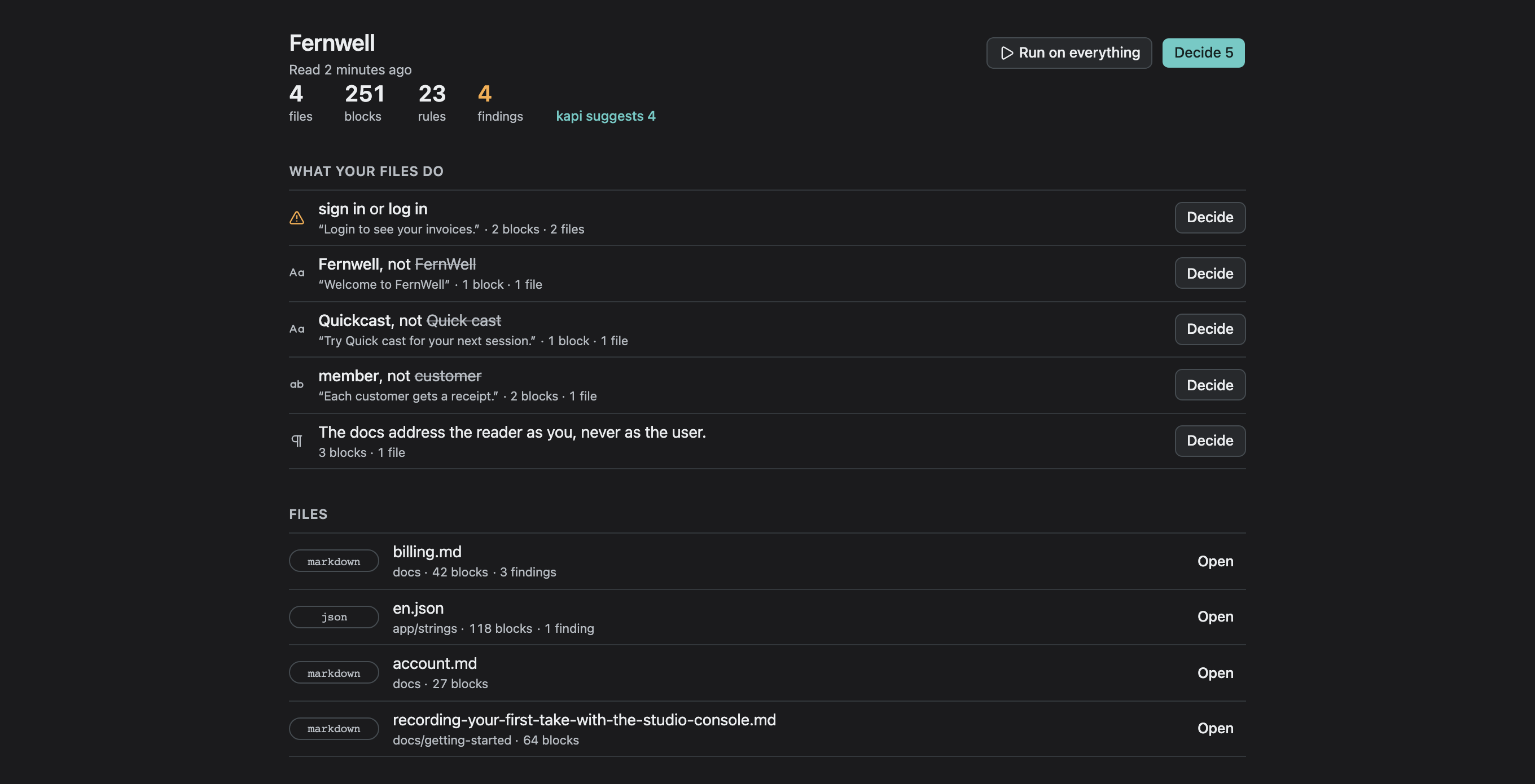
A project opens on its Overview. Under the project's name, one line says when kapi last read the files, such as "Read 2 minutes ago". When kapi read fewer files than the project has, the line names how many it read. Then come four counts, each a link to what it counts:
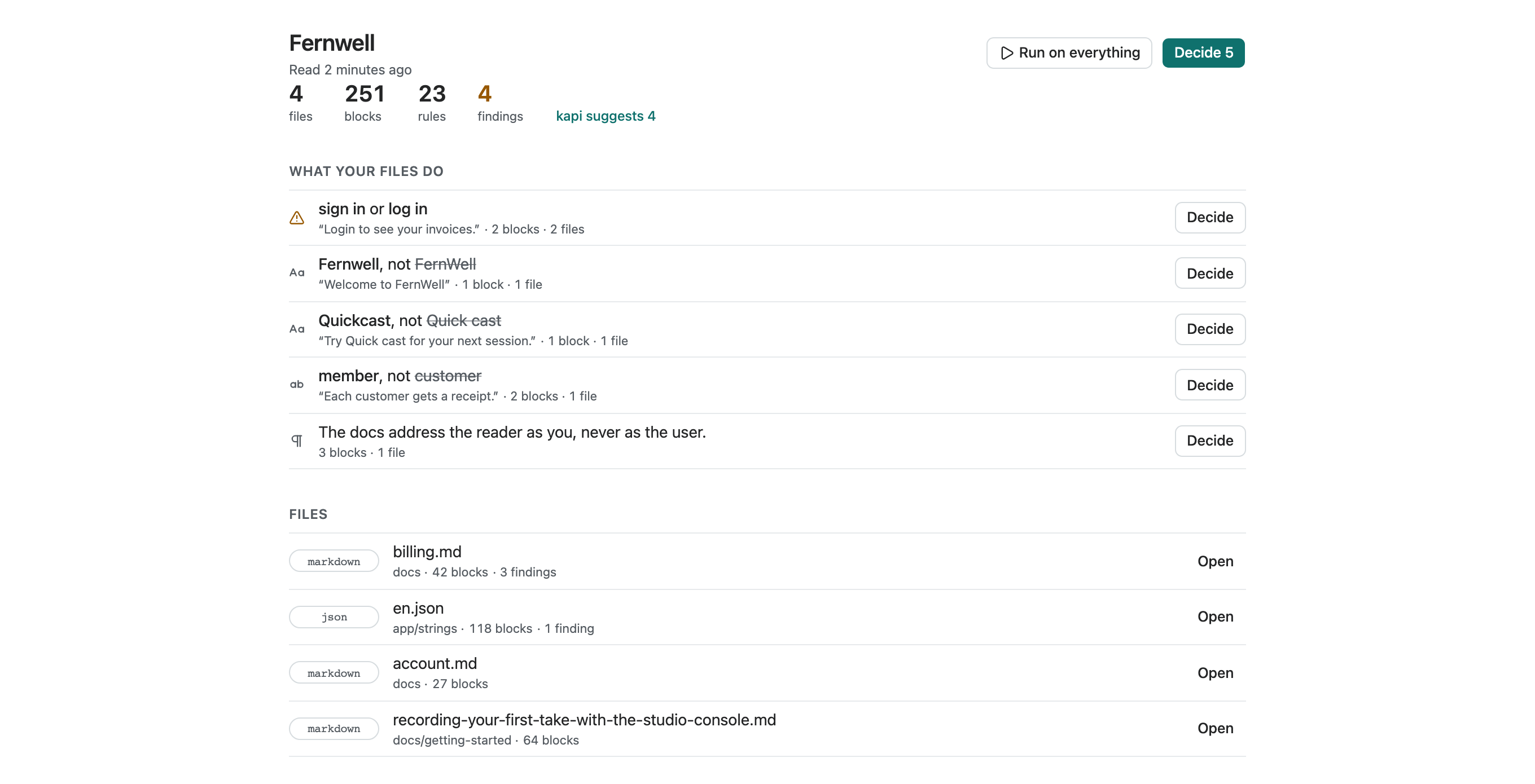
- files, the content files the recipe's collections declare;
- blocks, the blocks kapi read from those files, which open Search;
- rules, the rules in force: the terms, the voice profile's rules and the notes you kept, which open Explore;
- findings, what the last check over every file reported, which open the findings file by file. It is the one highlighted count, and only while it is above zero.
What your files do lists what your assistants suggested and nobody has decided yet, one row each: a mark for its kind, the suggestion, the sentence it was seen in, and how many blocks and files the evidence names. Decide on a row opens Decide on that suggestion. The Decide button at the top carries the count of everything waiting and opens Decide on the first item. When disagreements wait as well, kapi suggests beside the counts gives the suggestions alone. With nothing to decide, the list says "No suggestions yet." and offers Connect an assistant.
Deeper look with AI, under the list, reads your files with the connected AI
model and records what it proposes as suggestions: the terms the files use and
the voice they are written in, such as whom they address. While it runs, the
button names the model. The new rows appear in the list when it ends, noticed
by kapi with the model's name, and the line beside the button says how many
it recorded, or "Nothing more to suggest". With no model connected, the button
opens Connect your AI. In a folder without a kapi.yaml, the run writes
the recipe first, as running a flow does. It is the desktop's
kapi context suggest --ai.
Files has one row for each content file: its format, its name, its blocks and its findings, the files with the most findings first. Open shows the file in the Reader. A project with no content files says "No content files yet" and offers Add files, or Set up the project while its folder is empty or matches a preset kapi recognises. A new project opens on its Overview too.
The Reader draws a file's blocks in file order. Each finding is marked on
the words it is about, with a row under its block: its kind, the wording a term
rule asks for or the check's message, and Fix when the rule names a
replacement and no formatting sits among the words. Fix n in this file
applies every such fix at once, through the file's format, and a fix that
cannot apply says why under its finding. Rules here, beside the blocks,
lists what kapi context <path> prints for the file, in the same order. A
finding on the Checks page opens the Reader at its block. A file kapi read no
blocks from, and a finding on a comment, open in the preview.
Run on everything runs the checks over every file, in the project's target languages, and refreshes the counts. The Overview runs them once on its own the first time a project opens in a session, and kapi reads the files again whenever they change.
Decide, and the three answers
Decide is the first section of the project's Context page, and the
Overview's Decide buttons open it. Its title is the project's name and Decide, with
the number of suggestions to decide and the number of rules kept. The list
holds one row per suggestion waiting for you, and the pane beside it asks one
question about the row you select, the same question kapi rules asks:
- For a name, "Which one do your files use?". The options are its forms, the most used first, each with the blocks and files that write it, and Other… takes a form of your own.
- For a word or a note, "Keep this as a rule?".
- For two suggestions that disagree, one question with a side per option, each with who suggested it and what keeping it does.
Before you answer, a line says what keeping the picked option does: how many blocks a check then reports, and where the rule applies. Below the actions, Seen in quotes the sentence the suggestion was seen in, names the file, which opens Search there, and shows the mark of the assistant that filed it.
A suggestion advises from the moment it is recorded. A check reports it and fails nothing, so an assistant's suggestion never stops your work. It becomes a rule when you keep it. Each question takes one of three answers:
- Keep makes it a rule in the project's terms, voice profile or content memory, where every check reads it. On a disagreement, it keeps the side you picked and sets the other aside.
- Not a rule sets it aside, and it stops advising at once.
- Later records nothing. The suggestion keeps advising, and Decide asks about it again the next time you open it.
The keys: k keeps, n answers not a rule, l leaves it for later, and the
option numbers pick another option. After each answer the next question is
selected. With none left, Decide says "Nothing to decide." with the number of
rules kept and a link to the Overview. Sessions, under Assistants in
Project Settings, drops or widens a rule already in force.
Deciding needs a readable checkout of the project on this machine. A project
with no checkout here shows what was recorded for it, without the answers. The
chip at the right of the section bar reads kapi rules.
Search
Search answers by word and by file. Give it a file and it shows what applies there: the voice profile, the terms and the rules. Search for a word and it returns the terms that cover it, the approved wording that uses it, and where each is used.
Explore
Explore shows the project's context on the project's axes and over time. It covers the rules and notes recorded in the log, the terms in the terms store, and the project's content, counted by collection, language and state. All views share one query, so a selection made in one view narrows the others.
- The timeline at the top counts what was recorded each day. Drag across it to choose a window, or pick 7d, 30d, 90d or All. The snapshot is at the end of the window. Clock switches the timeline between the date a record was recorded and the date it takes effect.
- Flow draws one column per axis, such as product, channel, market or state, with a band for each pair of values that occur together. Hover a value to trace the same records through every column, and click it to keep it in the scope. State at start and State at snapshot show how records changed state between the two dates.
- Matrix crosses two axes. Over time shows a row per value across the window. Map draws markets and the regions that locale tags name, either as outlines that you drill into from the world down to a city or as a grid of countries. Records lists what is in scope.
- Selecting a record opens it beside the view: its scope, when it was recorded and when it holds, its history, and the sentence it was seen in.
- Pin A keeps the current query. Change the window or the scope, then choose Compare with A to see the two side by side.
Try a question offers four starting queries: what changed in the window,
where rules apply, what needs a person, and which rules hold only for a while.
kapi context atlas --json prints the data that Explore displays.
Explore your context goes
through each view on the sample.
Assistants
Assistants is a tab of Project Settings. The page puts an assistant on the project and shows what it did there. Under the title, one line says what connecting does: "Checks every edit · follows your 4 rules · leaves suggestions here", with the count of rules the project keeps.
Assistants has one row for each assistant kapi can connect: Claude Code,
Cursor, VS Code, Codex, Agent skills and Claude Desktop. A row reads, for
example, "Claude Code · Connected · rules + check on every edit" or "Cursor ·
Not connected" with Connect. Connect writes the same files kapi connect
writes for that assistant and lists them. Until the kapi Claude Code plugin is
enabled, the Claude Code row names the two commands that install it. Claude
Desktop reads its servers from your own claude_desktop_config.json, outside
the project, and Connect asks before it changes that file. A context-only tab
shows no rows and says the project needs a checkout here.
Sessions lists the newest sessions recorded in the project, yours and the
assistants', with their counts. Where the check on every edit ran, a row also
counts the files the session edited, its checks, the findings left failing and
the findings caught (those one check reported and the next did not find), as
in 3 files · 4 checks · 2 caught, and the page header totals what was caught.
Selecting one opens it in Sessions.
Show what it reads, beside the title, opens two tabs.
Rules files says "kapi writes the rules into AGENTS.md and CLAUDE.md, which an assistant reads as it starts." Each file kapi writes has a row you can expand to read the section exactly as written. When a project has none, Write them now writes them.
The brief for a file is "For one file, the full answer an assistant gets,
the same text kapi context <path> prints." Pick a file to read the voice, the
words to use and to avoid, and the text the assistant reads.
Connect an assistant walks through it.
Sessions, and going back
Sessions, reached from the Assistants page, lists what was recorded in the
project, one session per row, newest first: the assistant or the person who
worked, when, and how many operations the session holds, if it holds any.
Select a session and the pane beside the list shows its counts, with the check
counts where the check on every edit ran, and then one list by time: its
operations (what the assistant noticed, what a person decided) and its latest
check runs. A check run's row names the files it checked, or how many, and reads clean or
the failing count with the rules, and marks caught beside a finding the next
run did not find. kapi context log prints the same record.
An assistant's session has Reset to before this session above its
operations. It goes back to how the context stood before that session started.
What the session recorded, and what was decided since, is set aside, and the
terms, approved wording and voice are rebuilt as they stood. What was set aside
stays in Sessions, marked as set aside. The reset is recorded too, in the
session of the person who made it, and Take this reset back there brings
everything back. It is the same as kapi context reset --before <session>.
The History link on the home opens the same record for every project in the workspace.
Where the context lives
Share, a tab of Project Settings, shows how far a project's context reaches, as three rungs, with the current one marked.
On this Mac is where every project starts: "In your workspace at
<path>. Every clone and worktree of this project on this Mac reads it."
There is nothing to do on this rung.
Shared with your team reads "Not yet. Name a place and sync, and every machine that syncs the project reads the same context." Set up sharing offers three places:
- git: the project's own repository, in a ref outside every branch. Whoever can push a branch can push it.
- a folder, such as a mounted team share, by its path.
- S3: a bucket, with a prefix, a region and an endpoint.
Saving writes a context: block into kapi.yaml and offers Sync now. A
sync takes in what the rest of the team shared, shares what this machine
recorded, and rewrites the rules files. The rung then says where the context
is shared and how far apart the two copies are: "Through git (origin
refs/kapi/context). 2 to push, 0 to pull, as of 10:03." When the place cannot
be reached, the rung ends "The place could not be reached at 10:03." and
nothing changes here. The caption reads "kapi context sync".
The third rung is a managed workspace that holds every project's context for a team. The tour says what it adds. Share context with your team walks through each place, and Sharing context is the same on the command line.
Try it with the sample
Try the sample on Start here opens KapiMart, a sample store whose website, app, legal and marketing copy come with a voice profile, terms, a content memory and five target languages. It arrives with two assistant sessions already recorded against its files, so its Map lists something to decide on first open.
In the first session, claude-code noticed how the store spells its own name, a word the copy uses in place of another, a spelling it keeps to, and how the store copy addresses the shopper. It also recorded a correction a person made to its draft. In the later session, codex took the other side of that correction, so Decide opens on one disagreement.
Every piece of evidence quotes a sentence in the sample's files, and clicking the file under Seen in opens it. You can keep, mark not a rule, or leave for later, see the kept rule in what an assistant reads, and reset to before either session from Sessions. Nothing calls a model. Review what your assistant noticed is the walk through it.
The project's content
Content, a tab of Project Settings, is the project's collections and where they stand. It shows two axes: Content (the blocks the files hold, and what is missing) and Governance (the voice profile in force, the terms that apply, and when the project last converged). Where content sits gives one row for each part of the project the recipe declares, with its collections and the voice that applies there.
On a project with a target language, the Overview shows Bring up to date
under its counts. It runs the project's
default flow until every gated locale ships or waits for review, the desktop
form of kapi up. Plan… beside it shows the
pending work, what content memory can supply, and a token estimate before
anything runs.
Three counts above the button separate the run's work from a person's. Blocks to translate are what the run drafts. Waiting for review opens Review. Languages held back lists each collection language that does not ship yet and what holds it back: a ship gate not yet met, a failing check, or a source that changed after approval. The app reads the project's files when the project opens and again when they change, so no step reads them in by hand.
Collections and formats
A project's content is grouped into named collections. Each is a set of patterns, and the app shows the files they match beside the format kapi detected for each.
Opening a file previews it the way the engine reads it: the rendered document, the blocks it parsed, and, where a format carries them, the structure and the layout. Media files render as themselves. Formats that need an engine plugin offer to install it on first use. The format reference lists what kapi reads.
Checks
Checks are the tests for prose. Run on everything on the Overview runs them, and the Overview's findings count opens what they found. A finding names the rule that fired and where it applies. Click it to open Context there, with the rule in view, and change the wording or the rule.
Flows
The Toolbox holds the flows a project runs over its content, each a named sequence of steps saved beside the project. Open one to edit it, and run it with live progress for each file. The Toolbox also holds single tools, and the formats kapi reads with their settings.
And in every language
A project that declares target languages gets the multilingual half. Per-language coverage appears on the collections it applies to, Bring up to date and Plan… appear on the Overview, the Review queue takes whatever the loop could not carry to the ship gate, and inspection puts source and target side by side with their findings, to approve or reject.
A project that declares none is complete as it is. Its Overview shows no language work, and Review offers the source language and the languages to translate into. Adding the first target language there, or in Project Settings, brings the rest.
Install
On macOS, the cask installs the app and bundles the kapi CLI:
brew install --cask neokapi/tap/kapi
See Installation for the release channels.
For the Windows installer and the macOS DMG / Linux tarball builds, see Installation.
The project file
Everything you configure is written to a portable kapi.yaml recipe. Commit it
to git to share with your team, reopen it in Kapi Desktop, or run it from the
command line:
kapi up -p kapi.yaml
Next steps
- A guided tour: each surface in motion
- Review what your assistant noticed: the sample, step by step
- Connect an assistant: what connecting writes, and what the assistant then does
- Share context with your team: from this Mac to every machine
- Your first project: the step-by-step path
- Kapi Project Files: the full recipe reference
- Kapi CLI guides: the same tasks on the command line, and the command reference